Notifications should work for you, not the other way round. Left on default, any app can interrupt your day more often than its information deserves. Set deliberately, the same alerts become genuinely useful: you hear about what matters, when it matters, and silence everything else without missing anything important.
This guide walks through the Android controls that shape Mixx Followers notifications, from the master switch to the fine detail of sounds and previews. Start from our Mixx Followers APK overview if you need the app basics, then use the sections below to tune alerts to your own tolerance and routine.
Decide What Deserves an Interruption
The first decision is not technical at all: which events in the app are actually worth interrupting you for? Most users find the honest answer is very few. Everything else can wait until you next open the app, where it will still be visible. Starting from that short list makes every setting afterwards easy.
Write the list down if it helps, even mentally: urgent account matters, perhaps; routine activity summaries, almost certainly not. Every alert outside the list is a candidate to silence. This one judgment call does more for your peace than any individual toggle buried in the settings screens that follow.
Find the Controls in Android
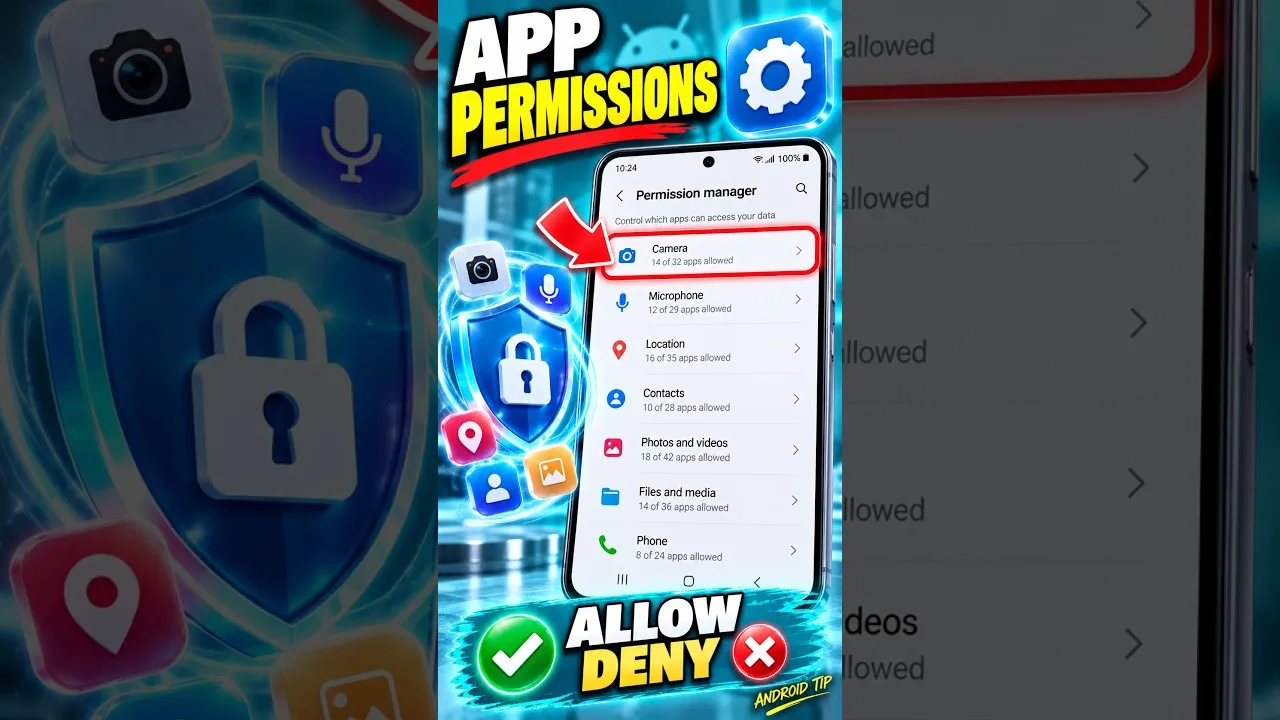
Android gives you two doors to the same room: the notifications page in the app info for Mixx Followers, and the app's own in-app settings where they exist. The system page is the more powerful of the two, because it can silence the app entirely, split alerts by category where categories are offered, and control how they appear.
Badges, sounds, vibration, and lock-screen behaviour are all set at system level. The Mixx Followers main sections guide helps you locate the corresponding in-app options, so you can see both layers and make sure they agree instead of fighting each other with contradictory settings.
Sounds, Vibration and Quiet Hours
An alert does not have to make noise to be useful. Setting Mixx Followers notifications to silent display keeps them in the shade for when you look, without the buzz that pulls your attention immediately. Vibration-only suits phones carried in a pocket, while full sound is best reserved for the rare categories on your urgent list.
Use Android's scheduled quiet features, such as bedtime or do-not-disturb modes, for the hours when no app should reach you. Those system schedules override per-app enthusiasm automatically, which means you can leave sensible daytime settings in place and still sleep undisturbed, without nightly toggling rituals.
Consider grouping your decision by place as well as by type. An alert that is welcome at your desk may be unwelcome at dinner, and Android's focus and routine features increasingly let the same phone behave differently in different contexts. Even a simple work-hours and evening split removes most of the friction people blame on individual apps.
Lock-Screen Previews and Privacy
What a notification shows on the lock screen matters if your phone sits on desks, counters, or shared tables. Android lets you show full content, hide sensitive content until unlock, or hide notifications on the lock screen entirely. The middle option suits most people: you see that something arrived, but the detail waits for your unlock.
This choice belongs to your wider privacy picture rather than to notifications alone. The thinking in our Mixx Followers privacy settings guide treats previews as one of several small surfaces where app activity can leak to bystanders, and it is worth aligning both guides' choices in a single review session.
Review After a Week, Not a Day
Live with your new settings for a week before judging them. Notification fatigue and notification silence both take a few days to reveal themselves in real routines. If you find yourself opening the app anxiously because an important alert went quiet, promote that category. If a category still annoys you, demote it without sentimentality.
Revisit the setup after updates or a phone change, since both can restore defaults. A two-minute review restores your carefully chosen balance, and keeping a note of your preferred settings makes that review a copying exercise rather than a fresh round of decisions each time something resets.
Notifications for Focus, Not Just Quiet
The goal is not the fewest notifications; it is notifications that earn their place in your day. A well-tuned setup can actually improve focus, because you stop checking the app defensively. When you trust that anything important will reach you, the urge to open the app just in case fades, and sessions become chosen rather than anxious.
That trust is built by calibration, not by switching everything off at once. Silence the clearly unnecessary first, live with the result, and refine. Users who tune in stages end with a small set of alerts they genuinely value, while users who mute everything often swing back to full noise later, having learned nothing about which alerts mattered.
Final Thoughts
Good notification settings are a short urgent list, enforced by Android's own controls: quiet display for the routine, sound only for what matters, previews that respect your privacy, and schedules that protect your rest. Set them once, judge them over a week, and Mixx Followers will inform you without ever nagging you. Revisit the balance whenever your routine changes significantly, because the right settings for a busy month may not suit a quiet one, and adjusting them takes only a moment.