Permission prompts often appear at the exact moment you are trying to finish something else, so most people tap allow without reading. With Mixx Followers, a calmer approach works better: understand what each permission type actually controls on Android, then decide whether the feature you are using genuinely needs it.
This explainer covers the common permission groups, where to review them, and how to change them without breaking the app. You can compare the summary on Mixx Followers APK file overview as you read, and then check your own phone's app info page alongside each section below.
Where Permissions Live on Android
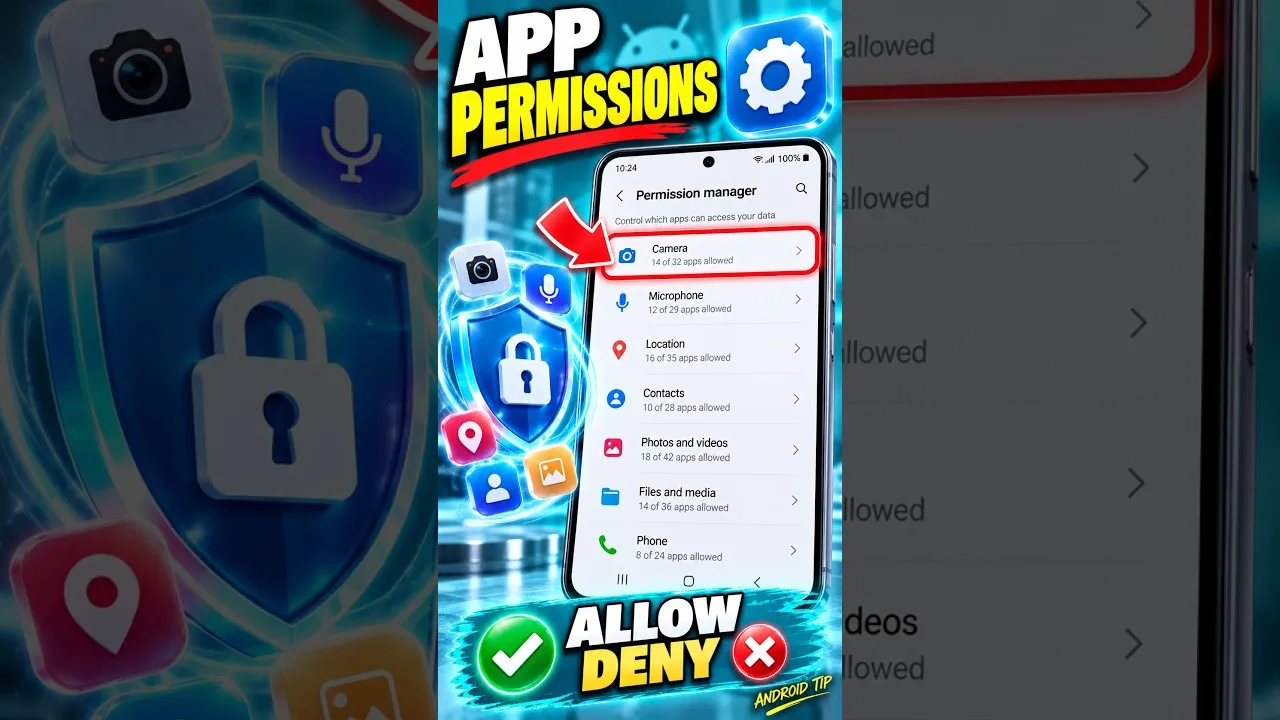
Every permission granted to Mixx Followers is listed in one place: open Android settings, go to apps, choose Mixx Followers, and tap permissions. That screen is the ground truth, regardless of what you remember tapping during setup. Reviewing it takes under a minute and often surprises people who find grants they made months ago and forgot.
Permissions are grouped by what they reach: storage or media, notifications, network-related access, and similar categories. Android also shows which permissions the app has never requested, which is equally useful information, because it tells you the boundaries the app has stayed within during your time using it.
Storage and Media Access
Storage or media permission lets an app read or save files such as images on your device. For a follower-related app, the typical reason is practical: choosing a picture, saving an image, or caching content so screens load faster. The key question is scope, and newer Android versions often let you share selected photos instead of your whole library.
Prefer the narrowest option that still lets the feature work. Limited access you granted deliberately is better than broad access granted in a hurry. If you later find a feature complains, you can widen access then, with full knowledge of why. The guide to Mixx Followers features on Android shows which parts of the app are most likely to need files or media in the first place.
Notifications Permission
Notifications are the permission users notice most, because they appear in daily life long after setup. Granting them means the app can place alerts, badges, and lock-screen previews. Denying them does not usually affect what the app does when open; it only silences what it can say while you are doing something else.
Decide based on whether the updates are genuinely time-sensitive for you. Many users prefer a middle path: allow notifications but trim their behaviour in Android settings, removing lock-screen previews or sounds. That balance is covered in more depth in our Mixx Followers privacy settings guide, which treats notifications as part of your wider privacy picture.
When an app asks for something at an odd moment, you are allowed to say no and finish what you were doing. A request that arrives disconnected from the feature it serves deserves scepticism, and any well-built app will ask again, with better context, when you actually reach the feature that needs it. Timing is information; use it when deciding.
Changing a Permission Safely
To change any permission, use the same app info page where you reviewed it, toggle one item, then open Mixx Followers and use the related feature. Changing one at a time is the golden rule: if something stops working, you immediately know which grant it depended on, and restoring it takes seconds.
Expect the app to ask again for a permission it truly needs when you next use that feature. That prompt is not a fault; it is Android working as designed. A permission you denied calmly and later grant on a clearer explanation is a healthier pattern than blanket approval during a rushed first setup.
A Sensible Default Approach
For new installs, a practical default is to grant only what the first session clearly needs and postpone the rest until a feature asks. Android is built for exactly this just-in-time pattern, and apps are expected to handle a no gracefully, explaining why a feature wants access before asking you to reconsider.
Revisit the list after any major update or phone change, since both can reset or expand what is granted. Two minutes on the app info page, a few times a year, keeps your permissions matching your actual use instead of your oldest habits, which is the real goal of managing them at all.
Permissions on a New Phone
Changing phones is the moment permissions quietly multiply, because setup wizards and restored backups can carry old grants across without asking you to think about them again. On any new device, treat the permissions page as part of unboxing: review what arrived with the app before its first real session, not after months of use.
The same applies after restoring from a backup on the same phone. Restores aim for convenience, and convenience sometimes means yesterday's broad grants returning silently. A fresh review restores your intentions, and it doubles as a useful audit of which permissions the app has actually relied on during your ownership.
Final Thoughts
Permissions are not a test you pass or fail at setup; they are ongoing choices you can review and revise at any time in Android settings. Grant narrowly, change one item at a time, and let real features justify the access they request. That approach keeps Mixx Followers fully usable while your phone stays under your control. That steady, informed control is the real benefit of understanding permissions, far beyond any single grant or denial you make along the way.