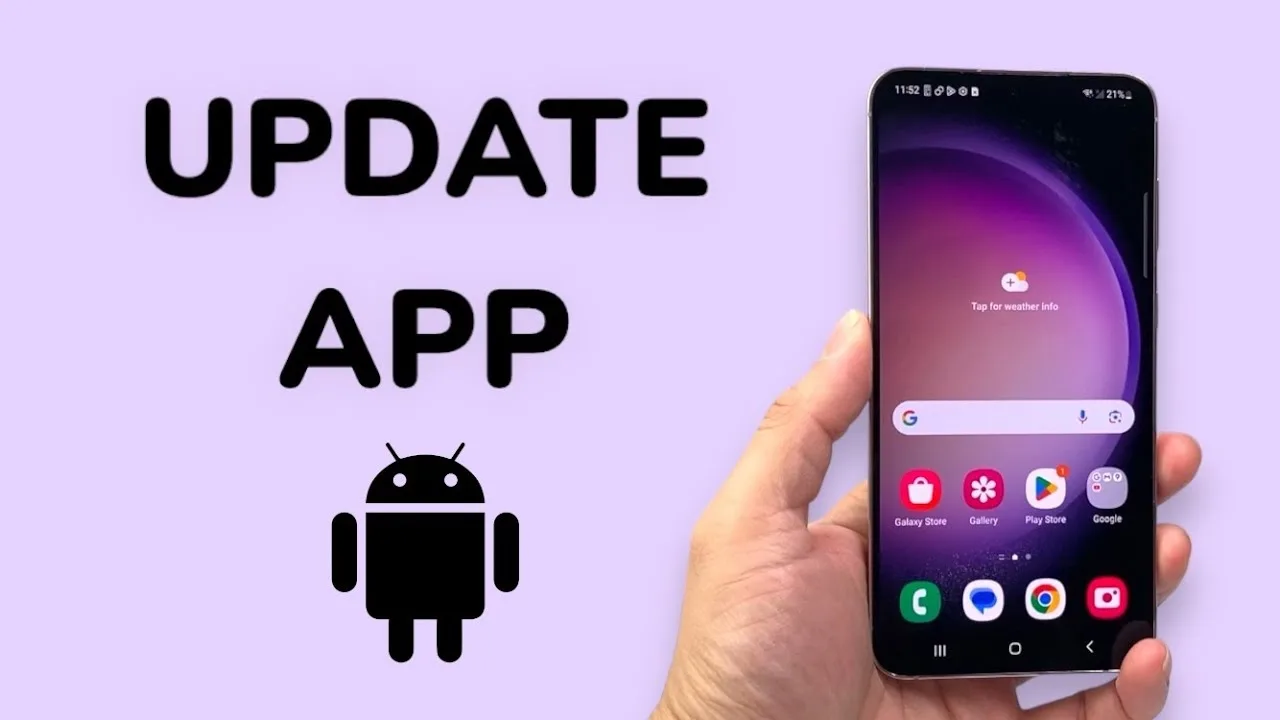
Updates keep Mixx Followers compatible with newer Android versions, fix faults found in earlier builds, and occasionally refresh the layout you are used to. Updating well is mostly about preparation: a few checks before you start make the difference between a two-minute job and a frustrating afternoon of errors.
This guide follows the order experienced users rely on, from checking what you already have to confirming the new build works. The app details on Mixx Followers Android download give useful context before you begin, and the steps below assume the app is already installed and signed in on your phone.
Check What You Are Running Now
Before updating anything, find your current version. It is usually shown in the app info page in Android settings, or at the bottom of an about or settings screen inside the app itself. Knowing the starting point matters if something behaves differently afterwards, because it tells you whether a change came from the update or from something else.
Also glance at your free storage before you start. Updates need working room to download and unpack, and a phone that is nearly full can fail an update halfway through, leaving confusing half-finished states. Freeing a little space first is the cheapest insurance in the whole process.
Prepare the Phone, Not Just the App
Connect to a stable network, ideally Wi-Fi, and plug in or check the battery. Large downloads over a weak mobile signal are a classic cause of corrupted update files, which then produce install errors that look like app faults. A few minutes on a reliable connection removes that entire category of problem before it can start.
Close other heavy apps while the update runs. Phones juggling a game, a video call, and an update at the same time are more likely to stall or overheat mid-install. Giving the update the phone's full attention for a couple of minutes is a small courtesy that pays off in reliability.
Install and First Open
Run the update and let it finish completely before opening the app, even if the progress bar seems to pause near the end. The final stage is often where files are arranged and checked, and interrupting it can leave the app in a state where it opens but misbehaves in small, puzzling ways.
On the first open after updating, expect a slightly slower start while the new build settles its files. Browse the main sections calmly and confirm your details are still in place. If the layout has shifted, the Mixx Followers main sections guide will help you re-orient quickly and find where familiar screens live in the refreshed arrangement.
Timing matters more than people expect. Updating late at night on a failing battery, or in a moving vehicle with a patchy signal, stacks every risk factor at once for no benefit. Choose a boring moment instead: at home, plugged in, on your usual Wi-Fi, with ten spare minutes. Updates performed in boring moments almost never become stories.
When an Update Goes Wrong
If the updated app will not open, crashes immediately, or loses a setting, stay methodical. Restart the phone first; it clears temporary states that survive an update surprisingly often. Then check storage again, and only after those basics should you suspect the update itself is faulty.
Avoid reinstalling in a panic before trying the simple steps, because a reinstall can cost you locally saved preferences. The systematic approach in Mixx Followers not working problems and fixes orders the checks from least to most disruptive, which is exactly the order to follow after a troublesome update as well.
Build Updating into a Routine
Updates are easiest when they are routine rather than rare events. Checking periodically means each update is small, quick, and low-risk, instead of a large jump across several versions at once. Large jumps are where layouts change most and where older settings are most likely to be retired or moved.
Keep a one-line note of when you updated and what changed for you. Over time that note becomes a personal history of the app on your device, and it makes conversations about any future problem far more precise, because you can say exactly when the behaviour you are seeing first appeared.
Reading Release Notes Like a User
Update notes are written for everyone, which means most lines in them will not affect you at all. Read them with your own routine in mind and pick out only what touches the screens and features you genuinely use. A fix for a section you never open requires no action, while a change to your daily screen deserves a careful first look after updating.
If the notes mention changed settings or moved options, visit those areas on your first open rather than discovering the change mid-task days later. Two minutes of deliberate orientation after an update replaces the low-level confusion that otherwise lingers for a week, making the new build feel harder than it actually is.
Final Thoughts
A calm update is a prepared update: note your current version, free some space, use a stable connection, let the install finish fully, and verify your details on first open. Handled that way, updates stay boring in the best possible sense, and Mixx Followers keeps working the way you expect on your Android phone. Handled this way, each new build becomes a small, uneventful improvement rather than an interruption, and your confidence in the process grows with every calm, successful update you complete.