An app used in short, frequent bursts can still leave a mark on battery life and a mobile data plan, especially when it runs on older phones or limited connections. The good news is that most of that footprint comes from habits and settings you control, not from anything the app forces on you.
This guide covers the practical levers: session style, background behaviour, and the Android controls that trim usage without spoiling the experience. Pair it with Mixx Followers APK for Android phones for the app basics, then work through the checks below with your own usage patterns in mind.
Short Sessions Beat Long Ones
How you use the app matters as much as any setting. Long, idle sessions with the screen on are the biggest battery cost in almost any app, because the display itself is the hungriest component in the phone. Opening Mixx Followers with a purpose, completing the task, and closing it again keeps that cost close to the minimum.
Batching helps too. Several tiny checks spread across an hour keep the app and screen waking repeatedly, while one slightly longer session does the same work in a single wake period. Fewer, deliberate sessions are kinder to the battery and, as a side benefit, usually feel calmer and more organised as a routine.
Control Background Behaviour
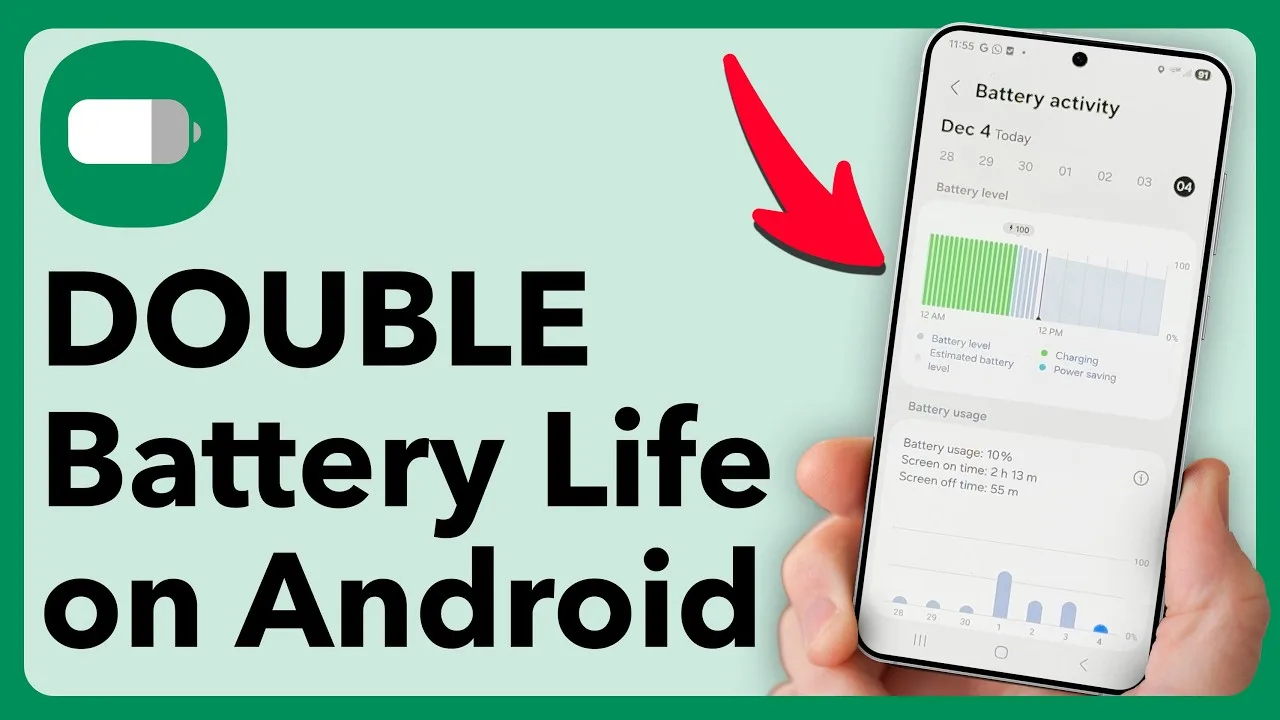
What the app may do while you are not looking is set in Android's app info and battery pages. You can see how much battery and data Mixx Followers has used over a recent period, and restrict background activity if the numbers look out of proportion to how often you actually open it.
Restrictions have trade-offs: alerts may arrive late and content may refresh only when you open the app. For a tool most people use actively rather than passively, that is often an acceptable bargain. The Mixx Followers device compatibility guide is worth revisiting if your phone is older, since smaller batteries and older processors feel background limits very differently.
Make Mobile Data Go Further
On a limited plan, the biggest savings come from preferring Wi-Fi for longer sessions and saving mobile data for quick checks. Android's data usage page shows exactly what the app consumed on each connection type, which turns guesswork into a simple decision about where your usage really happens.
Data-saving mode at the system level can also help, but apply it thoughtfully. Restricting the app you are actively using can make screens load slowly and create the impression of a fault. If you notice that trade-off, exempt Mixx Followers while keeping the saver active for apps you rarely open, as described in our connection fixes for Mixx Followers.
Remember that the first day after an update or a fresh install always looks expensive in the usage figures, because the app is rebuilding caches and settling files. Judge any measurement over a normal week of your real routine instead. Decisions made on one abnormal day of data tend to restrict the app for a problem it never actually had.
Brightness, Heat and Battery Health
Screen brightness is the lever hiding in plain sight. Reading-level brightness indoors uses a fraction of the power of full brightness, and auto-brightness usually finds that level for you. Heat is the warning sign to respect: a phone that grows warm during ordinary app use is working harder than it should, often because of background load.
Long-term battery health benefits from the same habits. Avoid routinely running the phone to empty during app sessions, and try not to use demanding apps while fast-charging in a hot environment. These small courtesies extend the useful life of the battery, which keeps every app, including this one, feeling responsive for longer.
Measure, Then Adjust Once
Spend a week measuring before changing much. Android's battery and data pages give per-app figures that show your real pattern, which is often different from your impression. A single honest measurement prevents weeks of tweaking based on a feeling, and it shows which of this guide's levers is actually relevant to you.
Then make one or two adjustments and measure again. If background restriction halves the app's battery share without affecting your routine, keep it. If it spoils something you value, undo it and try a different lever. Usage management is an experiment with your own phone as the laboratory, and the numbers make it a short one.
Check the Numbers Monthly
Battery and data figures drift as your habits change, so the settings that suited you three months ago may no longer be the right ones. A monthly glance at the per-app usage pages takes under a minute and shows whether Mixx Followers is holding its modest place in your consumption or quietly climbing the list for a reason worth understanding.
Treat a sudden change as a question, not an accusation. A new routine, a busier week, or a setting altered by an update can all explain it. What matters is that you noticed, because usage you never look at is usage you are not managing, and both battery anxiety and data surprises grow in exactly that blind spot.
Final Thoughts
Mixx Followers stays light when sessions are purposeful, background activity is set deliberately, and mobile data is reserved for quick checks while Wi-Fi carries the longer visits. Measure your real usage in Android's own pages, adjust one lever at a time, and you will keep both battery and data comfortably under your control.